Editing Spritesheets
This guide shows how to edit RSDK spritesheets and avoid common problems when doing so.
Prerequisites
- An extracted Data folder for the game you are modding
- An image editor that supports indexed palettes (see Image Editors)
Recommended Image Editors
Retro Engine heavily uses palettes for its graphics, and all spritesheets are stored in GIF format to enforce using palettes. Due to this, you need to use an image editor that supports indexed palettes. Most popular image editors (Photoshop, GIMP, paint.net, etc.) do not support this or attempt to reorganize and optimize color palettes when saving files, causing issues when spritesheets saved with them are used in-game.
The recommended editor for working with RSDK spritesheets is GraphicsGale, since it has indexed palette support enabled by default. Other options include Aesprite and Libresprite, however you may need to enable it manually for those programs.
The rest of this guide focuses on editing spritesheets in GraphicsGale, but if you know how to use another supported image editor, you should be able to do everything in this guide there as well. If you're unfamiliar with using GraphicsGale, you can press F1 in it to open the user manual.
What if I really want to use another image editor?
If you must use an image editor that doesn't support indexed palettes, there is a workaround to avoid ruining the palette:
- Open and edit the spritesheet in the editor you want to use, but do not save the file in it
- Open the spritesheet in GraphicsGale
- Copy the entire canvas in the editor you were using and paste it into the file in GraphicsGale, then save in there
Sheet Sizes
The pixel width and height of spritesheets should both be set to a power of two (2, 4, 8, 16, etc.). Other sizes can work, but will cause issues with effects such as rotation and flipping. It's best to keep spritesheets as small as possible, as the engine can only load a certain amount of graphics data at once, and loading too much will cause instability and crashes.
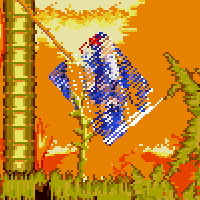
An example of graphical distortion caused by a non-power-of-two spritesheet size.
In addition, for RSDKv4 and below, spritesheets used by animation files (i.e. player character spritesheets) can be no bigger than 256x256 pixels. If you need more space than that allows for, you can add more spritesheets to the animation file.
To change the size of a spritesheet in GraphicsGale, click All Frames in the menu bar and choose either Expand Canvas... to make it bigger (set the Image Position to the top left when doing this) or Remove Border... to make it smaller.
Palettes
The spritesheet's palette does not affect the colors that are displayed in-game; that is handled by the GameConfig, the stage, and any palette files loaded by game. Nonetheless, it is important that the spritesheet palette matches with the global and/or stage palette(s), so that your sprites appear with the correct colors in-game.
To edit a color in the palette in GraphicsGale, click it in the palette grid to select it, then click and drag on the color sliders or manually input the values in the field beside them. Click the tabs underneath the sliders to switch between RGB, HSL, and HSV sliders.
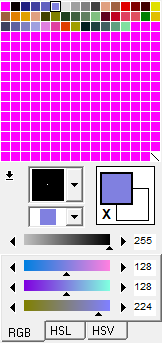
The palette view and color editor in GraphicsGale
To load a palette, click the icon under the palette grid and click Load Palette.... In the window that appears, click File, then choose either Import from File... (supports palette and image files) or Import from Clipboard.
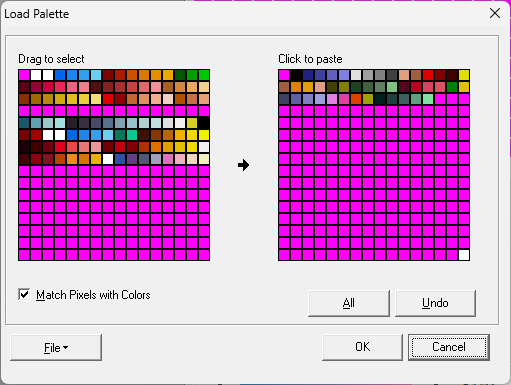
The Load Palette window in GraphicsGale
Troubleshooting
The sprites' colors are incorrect in-game
This might be because you did not use an image editor that supports indexed palettes. If this is the case, you will need to either manually replace the palette in an editor that does support it or, if your spritesheet is based on another one, start over with a fresh copy of that sheet and replicate your changes on it.
Another reason this can happen is because the indexes of the colors in the spritesheet's palette does not match with the global and/or stage palette(s) in-game. You will need to edit your spritesheet's palette to fix this.
The sprites become distorted when rotating or during other effects
Your spritesheet's width and/or height is not a power of two. See Sheet Sizes for more information.
There's a solid color background behind the sprites in-game
Make sure you're using color index 0 for transparency.