Setting Up Online Multiplayer for the RSDKv4 Decompilation
This guide shows how to set up a host server and connect to other players for the RSDKv4 Decompilation's online multiplayer (i.e. Sonic 2's 2P VS mode).
Warning
The network server is considered a proof-of-concept and known to be unstable. Don't expect reliable connections to other players.
Prerequisites
For all players:
- A build of the RSDKv4 Decompilation running Sonic 2
- Online multiplayer is only available in the RSDKv4 Decompilation. The RSDKv5U Decompilation only supports local multiplayer and lacks any networking features.
- If you are using the Sonic Origins version of Sonic 2, you will need to install and enable the decompiled scripts and run the game with
GameTypeset to0in settings.ini. Note that doing this will make the game run as if it's the mobile version, disabling changes and features from the Origins version.
- A stable internet connection
For the server host:
- Python 3.8 or later
- Server.py (Press the
Download raw filebutton to download it)
Running the Host Server
To run the server, you need to know your local IPv4 address and the target port number that you need to use. If you don't know your IP address, look up how to find it online. If you don't know what port number to use, use 8000.
Open a console/shell window in the folder you placed Server.py in and run the command py -3 Server.py [host ip] [port] debug (replace [host ip] and [port] with your IP address and port number, respectively). You should see a "starting.." line in the console log if the server starts successfully.
Connecting to Other Players
To connect to the server, all players need to edit their settings.ini file so that the Host and Port settings in the Network category are set to the host's IP address and port number, respectively.
After that, the players can open the game, select 2P VS in the start menu, and progress until they reach the Multiplayer menu.
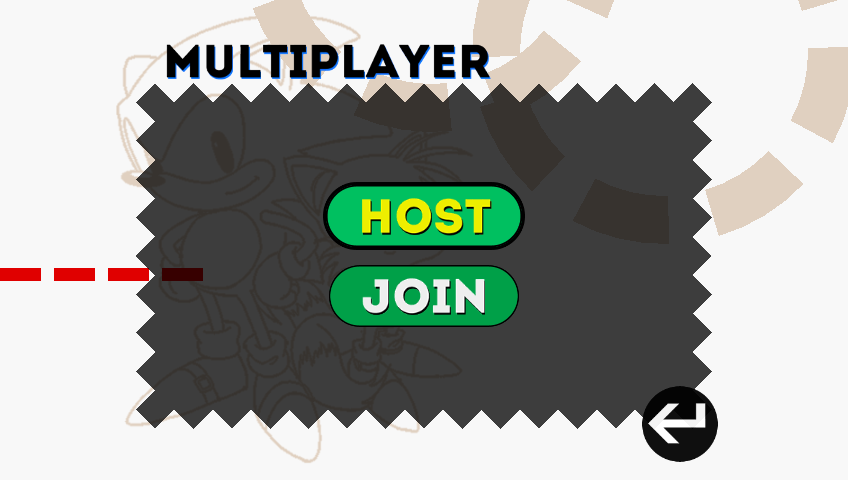
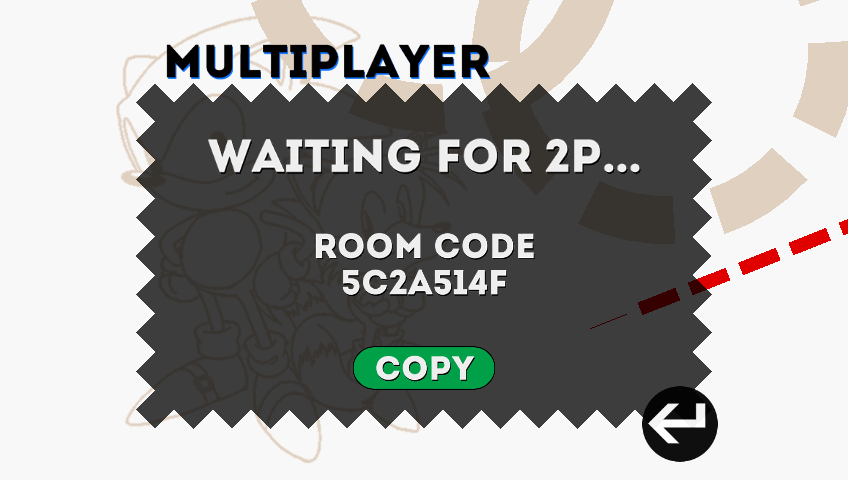
Selecting Host will create a new room and give you a code for it, as well as a button to copy it to your clipboard.
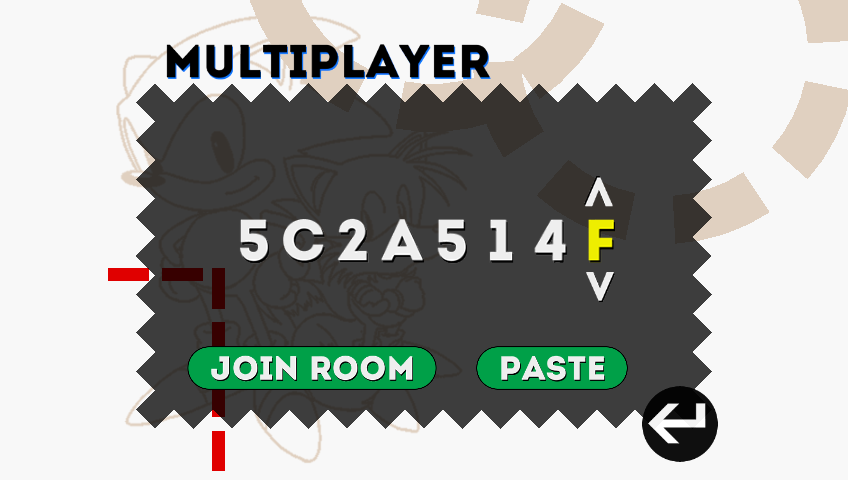
Selecting Join will let you enter a room by manually entering the room code or pasting it from your clipboard.
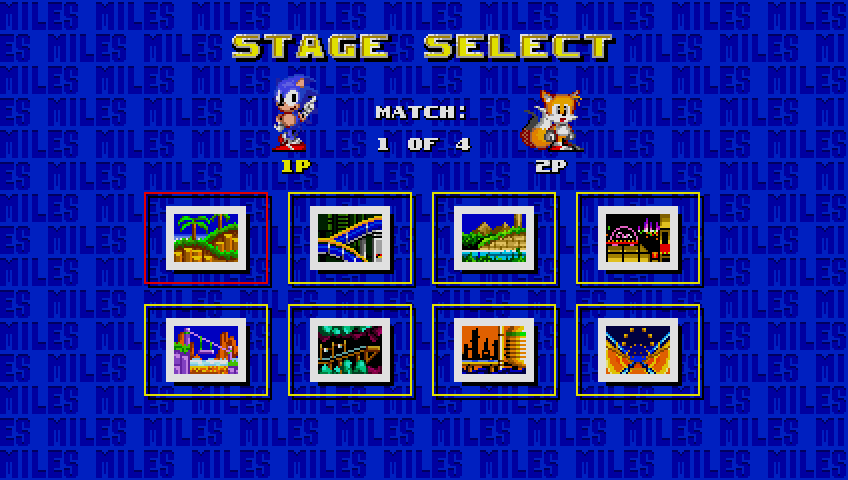
Once a player joins another player's room, both players will start connecting and the match will begin.

To close the host server, press Ctrl+C in the console window.
Troubleshooting
"Couldn't connect after 10 retries" error
This means that either the server isn't running or you configured your network settings in settings.ini incorrectly.