Setting Up Mods for the RSDKv2 Decompilation
Note
This guide assumes you have already set up the RSDKv2 Decompilation.
Mods Folder
Warning
Due to the original engine not being designed with mod support in mind, many mods might not be compatible with each other; using multiple mods that edit the same files/scripts can easily break the game. Only use mods together if they are completely independent of each other or are designed to be compatible with each other.
Create a folder named mods in the decompilation directory.
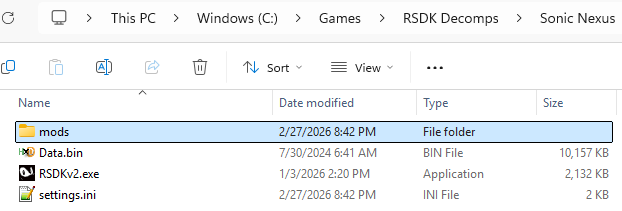
Download and extract the mod(s) you'd like to use into this folder. The file structure should look like this:
Using the Mod Loader
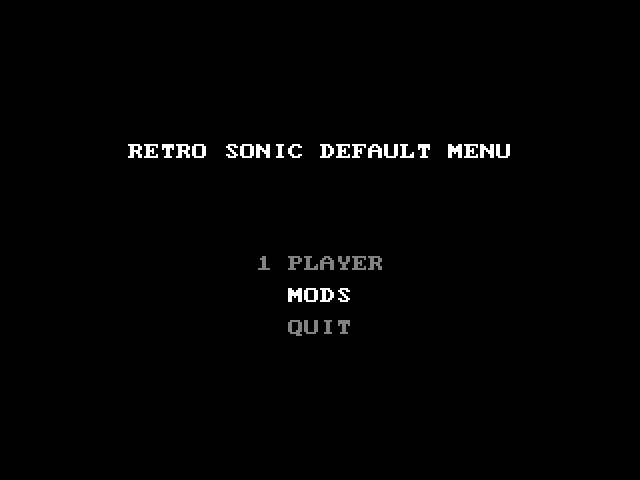
Enable the Default Menu, which will automatically load when opening the game. You can also open the Default Menu at any time by pressing Esc.
When the Default Menu is open, choose MODS to open the Mod List.
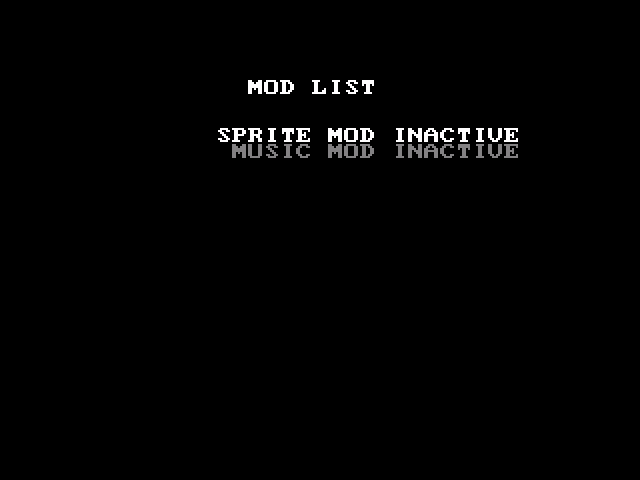
To control the menu, press or to select a mod, and press to toggle the mod on or off.
How do I change mod priority?
Mod priority is determined based on the order of the mods in the Mod List; mods get loaded from bottom to top. You can shift a mod up or down in the Mod List by holding while pressing or .